









Protecting your digital privacy is more critical than ever in 2026. Whether you are sharing financial documents or private business details, many users find themselves asking, "How do I encrypt a Gmail email effectively?" While Google offers built-in features like Confidential Mode for standard users and S/MIME for Workspace accounts, third-party extensions provide even deeper layers of security. This guide explores every method available to ensure your communications remain readable only by your intended recipients.
1. How to Encrypt a Gmail Email with Confidential Mode (Free & Easy)
Protecting sensitive information in Gmail is simple and free using its built-in security features. If you’re wondering how can I encrypt an email in Gmail, Confidential Mode provides an easy and effective solution, even if you’re also asking how do I encrypt a Gmail email.
1.1 What is Confidential Mode?
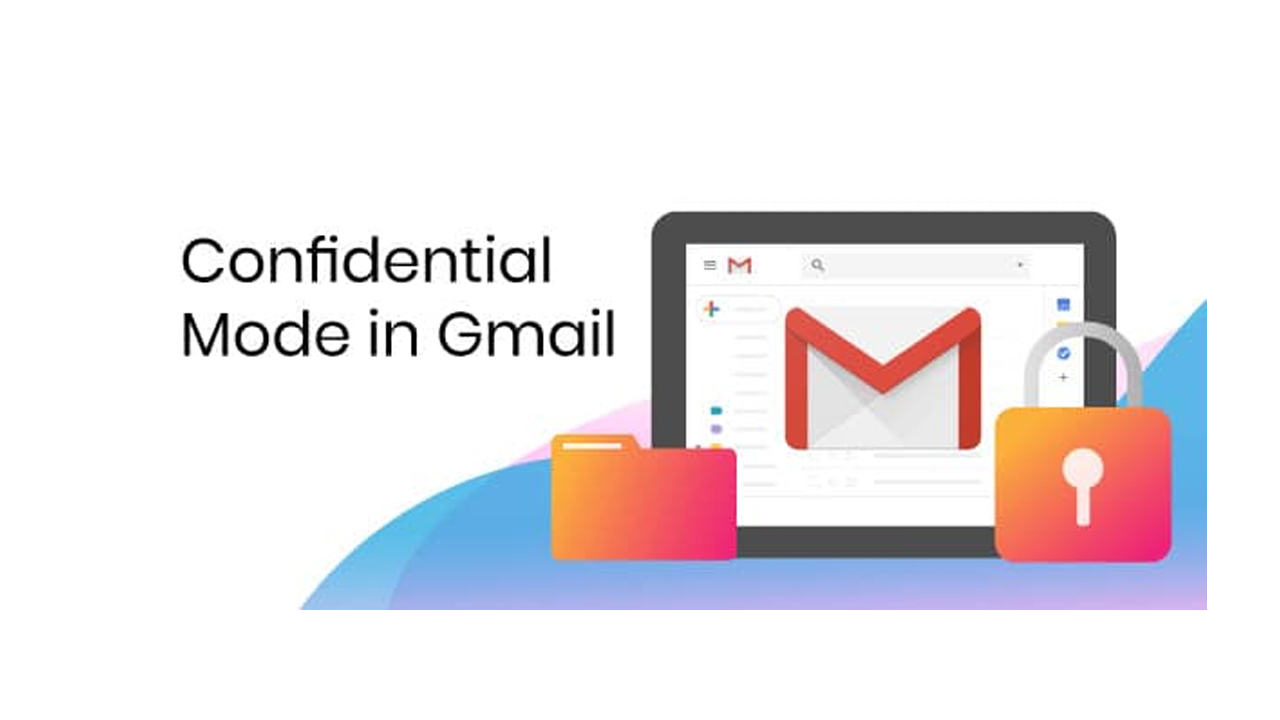
Gmail's Confidential Mode is a security feature that allows users to send sensitive information, protecting it from unauthorized access by preventing recipients from forwarding, copying, printing, or downloading email content and attachments. Senders can set expiration dates and revoke access at any time.
1.2 Steps to encrypt an email in Gmail on Desktop
To encrypt an email in Gmail on desktop, use Confidential Mode to prevent forwarding, copying, or printing. Click Compose, then click the Toggle confidential mode icon (lock with a clock) at the bottom right, set an expiration date and optional SMS passcode, then click Save and send.
Steps to Encrypt via Confidential Mode (All Users)
- Compose Email: Open Gmail on a desktop browser and click "Compose."
- Toggle Confidential Mode: In the bottom right of the message window, click the Toggle confidential mode icon.
- Set Constraints:
- Expiration: Set an expiration date for the message (one day to five years).
- Passcode: Select "SMS passcode" to require recipients to enter a code sent via text, or "No SMS passcode" for Gmail users to open automatically (non-Gmail users will get an email code).
- Save: Click "Save." A secure message box will appear at the bottom of your email.
- Send: Click Send. If a passcode was chosen, you will be prompted to enter the recipient's phone number.
1.3 How to encrypt a Gmail email on mobile (Android/iOS)
To encrypt a Gmail email on mobile, use Confidential Mode to prevent recipients from forwarding, copying, printing, or downloading content. On Android/iOS, tap Compose > More (three dots) > Confidential mode, then set an expiration date and optional passcode. This adds security to email text and attachments.
Method 1: Gmail Confidential Mode (All Users)
This feature is available for personal Gmail accounts on mobile devices:
- Open the Gmail app on Android or iOS.
- Tap Compose.
- In the top right corner, tap More (three-dot menu) and select Confidential mode.
- Turn on Confidential mode.
- Set an expiration date (e.g., 1 day, 5 years) for the email.
- Set a Passcode: Select "No sms passcode" (if recipient uses Gmail, they open it immediately) or "SMS passcode" (recipient receives a password via text).
- Tap Save or Done.
1.4 Removing Access Early
If you sent a confidential email and want to revoke access before the expiration date:
- Open the Gmail app.
- Tap Menu > Sent.
- Open the email.
- Tap Remove access at the bottom of the screen
>>> Ensuring your personal account has the best security settings? To streamline your professional privacy needs with high-quality, pre-verified accounts, explore the MegaAcc Gmail Account Products today.
2. Advanced Security: How to Encrypt a Email in Gmail with S/MIME (Workspace)
Encrypting emails in Gmail using S/MIME provides enhanced, end-to-end security, ensuring that only authorized recipients can read sensitive messages. Best suited for Enterprise, Business, and Education users needing to comply with high-security standards, this method uses digital certificates to verify identity and encrypt message content and attachments.
2.1 What is S/MIME in Gmail?
S/MIME (Secure/Multipurpose Internet Mail Extensions) is an email security protocol that adds a digital signature and end-to-end encryption to messages, protecting them from being read by unauthorized parties during transit and at rest. In Gmail, when S/MIME is properly configured by an administrator and users, encrypted messages are marked with a green lock icon, indicating enhanced, high-level encryption (often called "hosted S/MIME").
2.2 Requirements for S/MIME
S/MIME in Gmail requires a higher-tier paid Google Workspace subscription, such as Enterprise Plus, Education Plus, Education Standard, or Teaching and Learning Upgrade. Additionally, each user must have a valid S/MIME certificate obtained from a trusted Certificate Authority (CA) and, if not managed centrally by the admin, must upload it to their account via Gmail on the web.
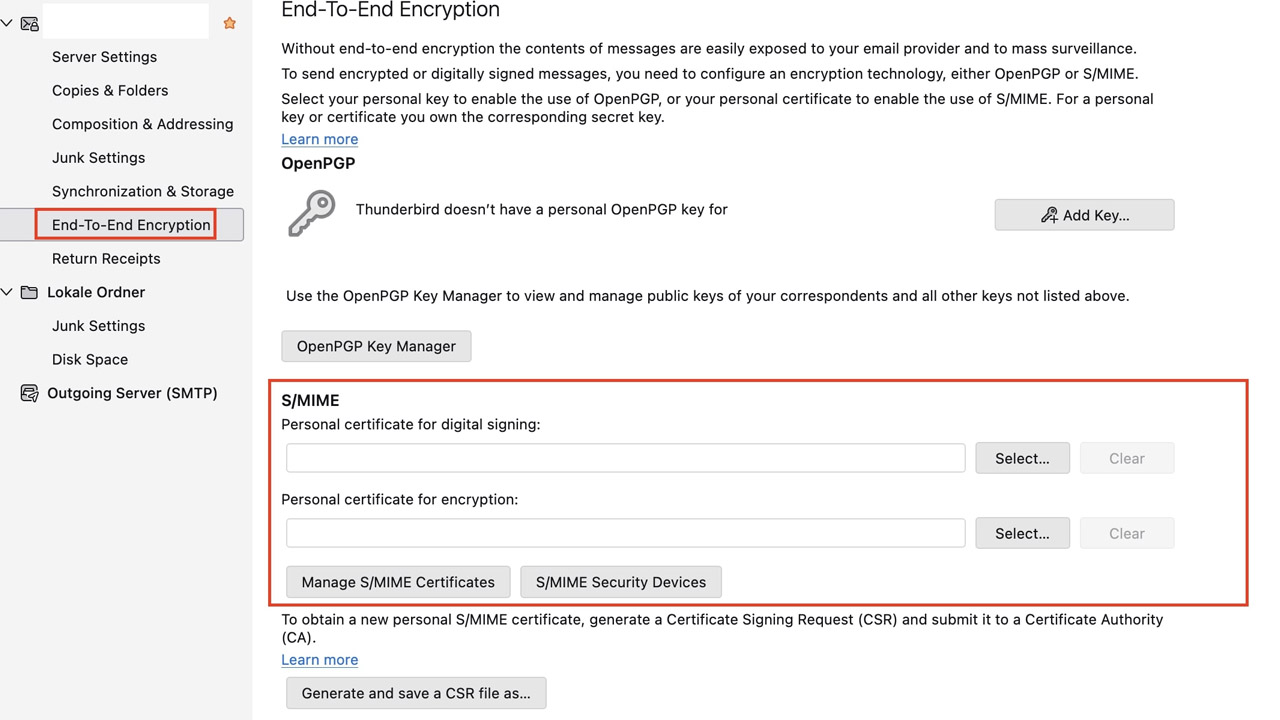
2.3 How to turn on S/MIME encryption in Gmail
Activating S/MIME requires a two-stage approach: Administrator enabling and User certificate uploading.
Admin setup (Google Admin Console)
- Sign in to the Admin Console > Apps > Google Workspace > Gmail > User settings.
- Select the Organization Unit on the left.
- Scroll to S/MIME and check Enable S/MIME encryption for sending and receiving emails.
- Check Allow users to upload their own certificates to allow individual management.
- Click Save.
User setup (Gmail on the Web)
- Go to Settings > See all settings > Accounts.
- Next to "Send mail as," select Edit info.
- Click Upload a personal certificate, select your certificate file (.p12 or .pfx), and enter the password provided by your CA.
- Reload Gmail to finalize settings.
3. Third-Party Tools to Encrypt an Email in Gmail
If you’re wondering can you encrypt a Gmail email, the answer is yes, even without native S/MIME support. If you are using a personal Gmail account or a basic Workspace plan, you can still achieve End-to-End Encryption (E2EE) using third-party browser extensions. These tools encrypt your message on your device so only the recipient can decrypt it, ensuring even Google cannot read the content.
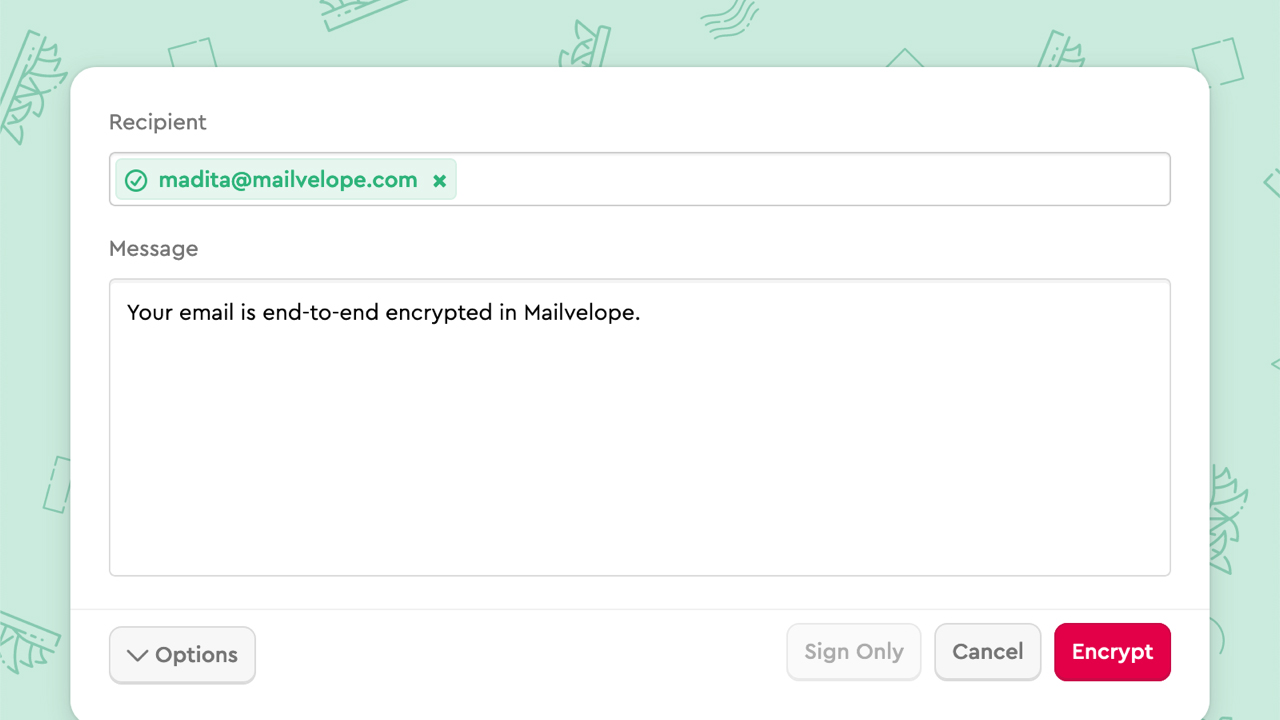
3.1 Mailvelope: Open-source PGP encryption
Mailvelope is a highly respected, open-source browser extension that integrates PGP (Pretty Good Privacy) directly into the Gmail interface. It works by generating a public and private key pair; you share your public key with others so they can send you secure mail. It is an ideal choice for users who prefer transparent, community-vetted software and want total control over their encryption keys.
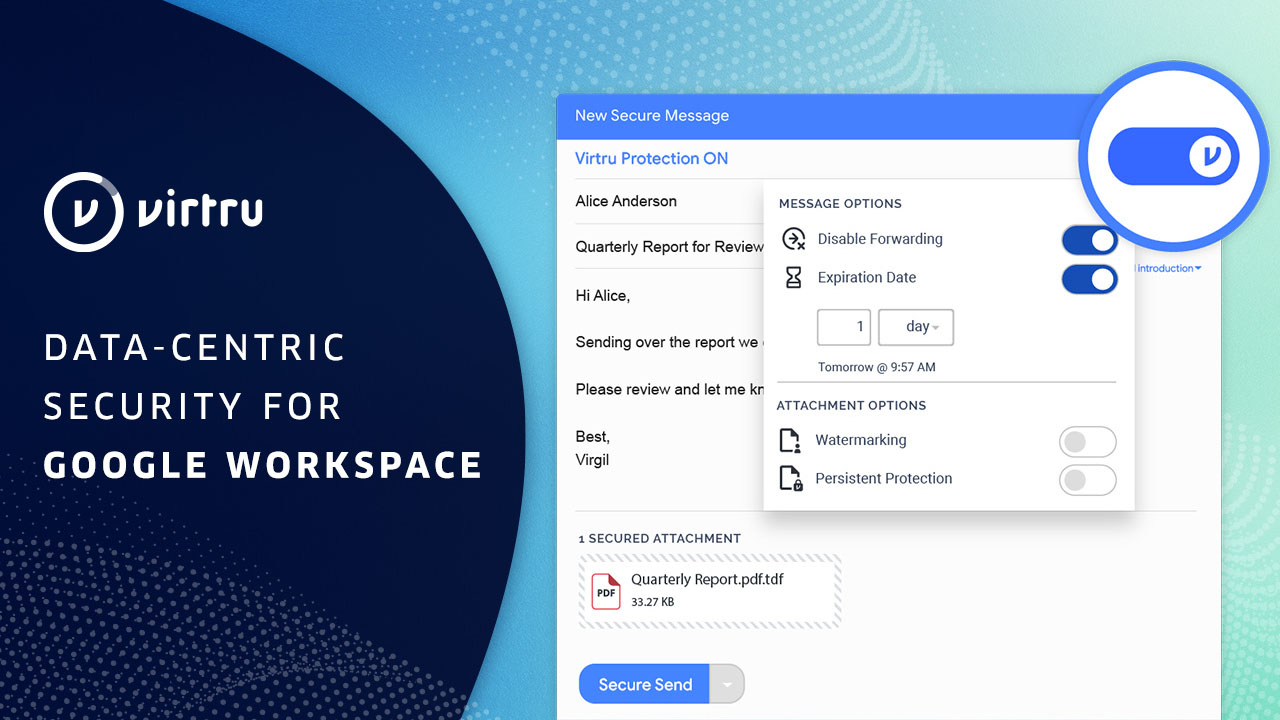
3.2 Virtru: Business-grade ease of use
For those who find PGP too technical, Virtru offers a more streamlined, user-friendly experience. It adds a simple toggle switch to your Gmail compose window to activate E2EE instantly. Beyond just encryption, Virtru allows you to set expiration dates on emails, disable forwarding, and even "revoke" access to a message after it has been sent, making it a favorite for professional environments.
3.3 FlowCrypt: The secure "Compose" button
FlowCrypt simplifies the encryption process by adding a dedicated "Secure Compose" button to your Gmail dashboard. Like Mailvelope, it uses PGP encryption but automates much of the key management to make it more accessible for beginners. It also allows you to send encrypted messages to people who don't have the extension by using a password-protected secure link.
4. Secure Your Communication with Premium MegaAcc Gmail Accounts
When it comes to high-stakes communication, using a dedicated, verified account is crucial. MegaAcc offers a seamless, reliable experience for purchasing Aged, Verified, and PVA (Phone Verified Account) Gmail accounts that are perfect for secure correspondence.
4.1 Premium Quality & Reliability
All MegaAcc Gmail accounts are rigorously checked to ensure high uptime and security standards. By starting with a stable, high-quality account, you reduce the likelihood of technical interruptions while setting up advanced encryption protocols. This reliability is essential for professionals who cannot afford downtime or access issues during critical business exchanges.
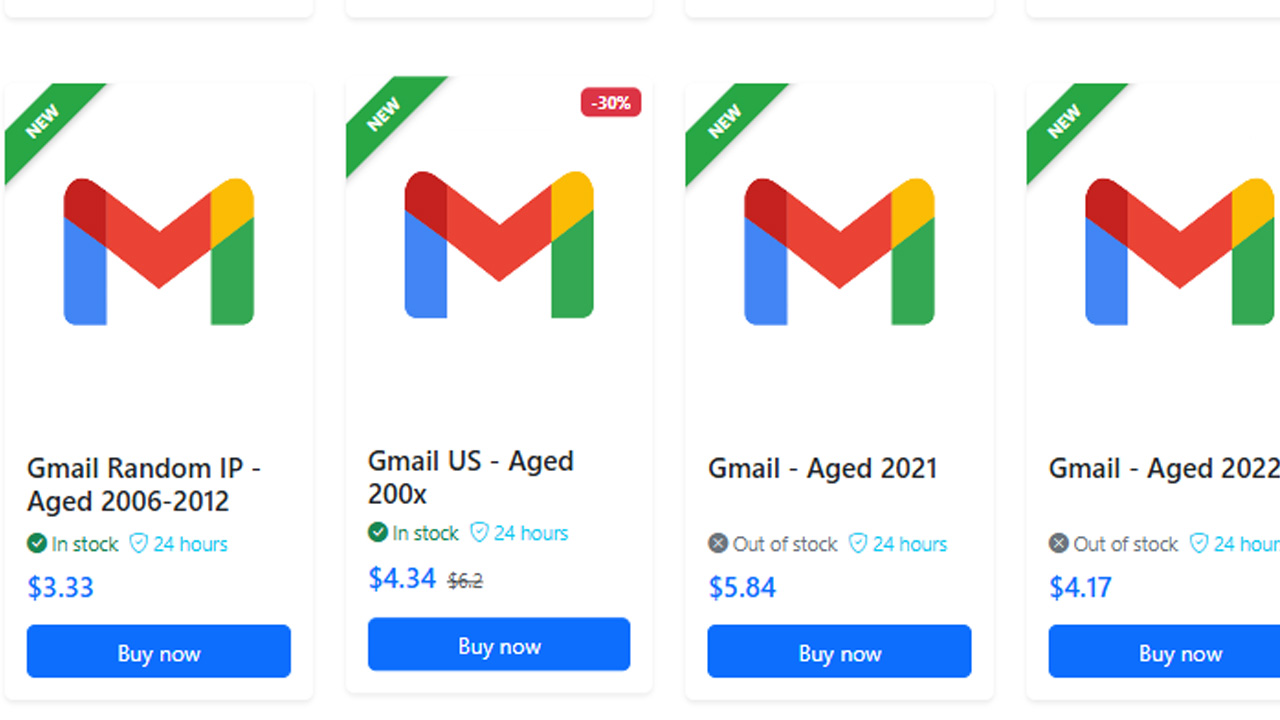
4.2 Phone Verified Accounts (PVA)
Using Phone Verified Accounts (PVA) significantly reduces the risk of account restrictions when managing sensitive data or encrypted communications. Because these accounts have cleared Google's verification hurdles, they offer a more resilient foundation for those who need to send high volumes of secure mail or access specialized security settings without triggering automated fraud flags.
4.3 Featured MegaAcc Gmail Products
To match different security and usage needs, MegaAcc provides several specialized Gmail account types:
- Gmail Aged 2019–2025 (Not for YouTube)
Ideal for long-term trust and stability. These aged accounts have strong history signals, making them perfect for secure business communication and reducing spam flags when sending encrypted emails. - Gmail Education (.edu, US – Live 24 Hours)
Suitable for temporary or academic-related tasks requiring higher trust domains. These accounts can be useful in environments where domain credibility matters for secure communication. - Gmail Aged 2023
A balanced option between cost and trust level. These accounts are newer than long-aged ones but still provide enough history for safer encrypted email usage and professional outreach.
4.4 Trusted Source for Professionals
MegaAcc is a trusted source used by professionals for their bulk, PVA, and aged Gmail needs. Choosing a reputable provider ensures that the account history is clean and prepared for professional use. This trust factor is vital when integrating third-party encryption tools or managing enterprise-level communication workflows.
4.5 Instant Access for Business
With instant access, you can receive your accounts immediately and start securing your business communications without delay. This efficiency allows you to deploy new secure communication lines as soon as they are needed, ensuring that your data remains protected from the very first email you send.
>>> Do not let your security efforts be undermined by a weak account. Register a new account on MegaAcc to gain access to dedicated, high-security PVA Gmail accounts designed for professional use.
5. Important Tips for Encrypting Emails in Gmail
Encryption is a powerful tool, but its effectiveness depends on how you manage your keys and your recipients. To ensure your private data stays private, follow these essential best practices for a secure digital workflow.
5.1 Verify your recipient’s encryption status
Encryption only works when both sides are compatible. Before sending sensitive information, always check for the lock icon in the "To" field; if the icon is missing or red, your email will be sent as plain text. For tools like PGP or S/MIME, you must first exchange a public key or a signed email with your contact to establish a secure handshake.
5.2 Secure your encryption keys and passwords
If you are using third-party tools like Mailvelope or FlowCrypt, your private key is the only way to read your messages. Never share this key with anyone and keep a backup in a secure, offline location. Additionally, if you use password-protected encryption for non-users, choose a strong, unique password and share it via a different communication channel, like a phone call or SMS, rather than the email itself.
5.3 Protect your account with Two-Factor Authentication (2FA)
The strongest encryption in the world won't help if an attacker gains direct access to your Gmail account. Always enable Two-Factor Authentication to add a vital layer of defense. This ensures that even if your login credentials are stolen, unauthorized users cannot bypass the secondary security check to read your decrypted messages or alter your encryption settings.
6. Frequently Asked Questions
6.1 Can you encrypt a Gmail email for free?
Yes, personal Gmail users can use Confidential Mode for free. This feature allows you to set expiration dates and require SMS passcodes to prevent unauthorized access, forwarding, or printing.
6.2 How can I encrypt an email in Gmail using S/MIME?
S/MIME is available for Google Workspace Enterprise and Education accounts. Once an administrator enables it, you must upload a personal certificate to your Gmail settings to enable end-to-end encryption with a green lock icon.
6.3 What third-party tools work best to encrypt an email in Gmail?
For personal accounts seeking end-to-end encryption, tools like Mailvelope (PGP-based), Virtru, and FlowCrypt are highly recommended. These extensions encrypt content directly in your browser before it even reaches Google's servers.
6.4 Does Gmail automatically encrypt all outgoing messages?
Gmail uses standard TLS (Transport Layer Security) by default, which encrypts emails during transit. However, for true privacy, you should use Confidential Mode or S/MIME to ensure the content remains protected even after it arrives in the recipient's inbox.
>>> Read more: How to Secure Email Account: The Ultimate Guide to Protecting Your Inbox
Conclusion
Securing your digital correspondence doesn't have to be complicated. By understanding the various methods available, from basic Confidential Mode to advanced S/MIME and PGP extensions, you no longer have to wonder, "how do I encrypt a Gmail Emaill?" Choosing the right level of protection based on your specific needs ensures that your sensitive information stays out of the wrong hands. Stay proactive, use strong authentication, and communicate with total confidence.